
Dashboard WithOut Proxy
Enable additional Add-Ons
We will need to enable a few additional Kubernetes add-ons to get this functionality up and running.
microk8s enable ingress # Ingress exposes HTTP and HTTPS routes from outside the cluster to services within the cluster.
microk8s enable dashboard # web-based Kubernetes user interface
microk8s enable dns # creates DNS records for services and pods
microk8s enable storage # provide both long-term and temporary storage to Pods in your cluster.
Enable Host Access
We need to alos enable one more additional add-on host-access to enable the access to services running on the host machine via fixed IP address.
We can enable to make use of the default address
microk8s enable host-accessEdit Kubernetes Dashboard Service
We need to edit the kubernetes-dashboard service file which provides dash-board functionality. To to edit this we need to edit dashboard service and change service type from ClusterIP to NodePort.
We use the following command to edit the file using vim.
kubectl -n kube-system edit service kubernetes-dashboardThis should open the contents of the file in vim and it should look something similar file below
You need to change type to NodePort
Once you save and exit the file K8s will automatically restart the service.
We can then get the Port the service is running by using the following command
Which should display something similar to the below and which we can see that the Dashboard is available on port 30536 in my case
Check Port
sudo snap install nmapnmap localhost -p 32061We can now open our Firefox browser on any workstation on our network and navigate to https://{server ip}:{port number} in my case it is https://192.168.0.35:30536
Get the token
We need to get the token from the server so we can do so using the following command in the server terminal
token=$(kubectl -n kube-system get secret | grep default-token | cut -d " " -f1) kubectl -n kube-system describe secret $tokenThis should return something similar too
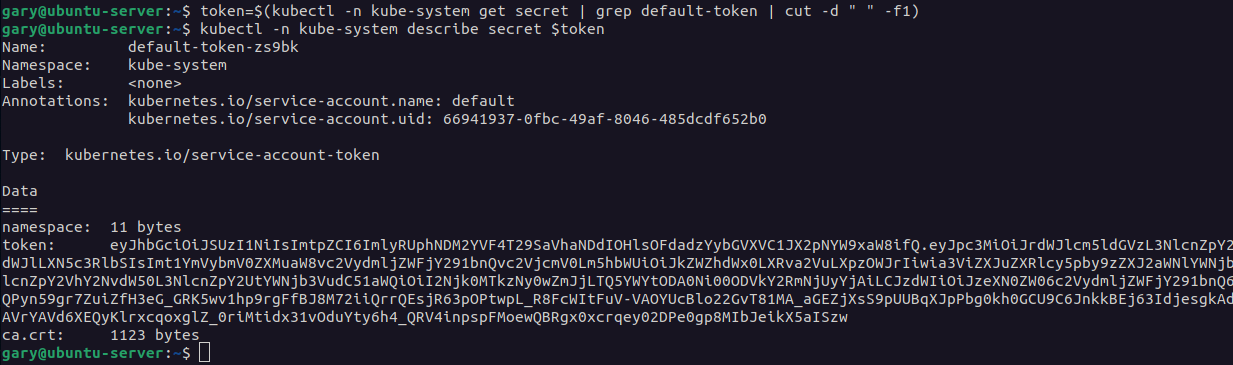
Copy the token text and paste it into the login dialog in the browser
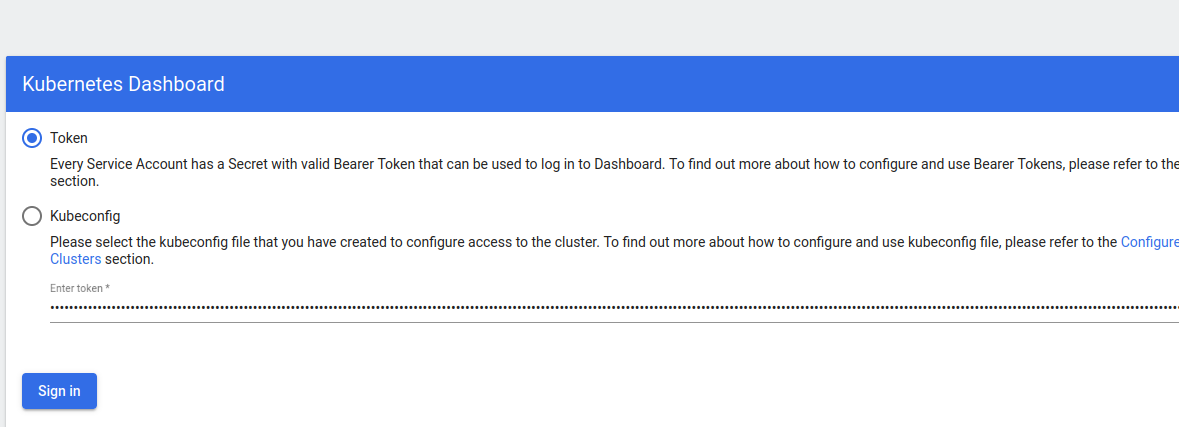
Then you should be able to login with ease.

No Comments